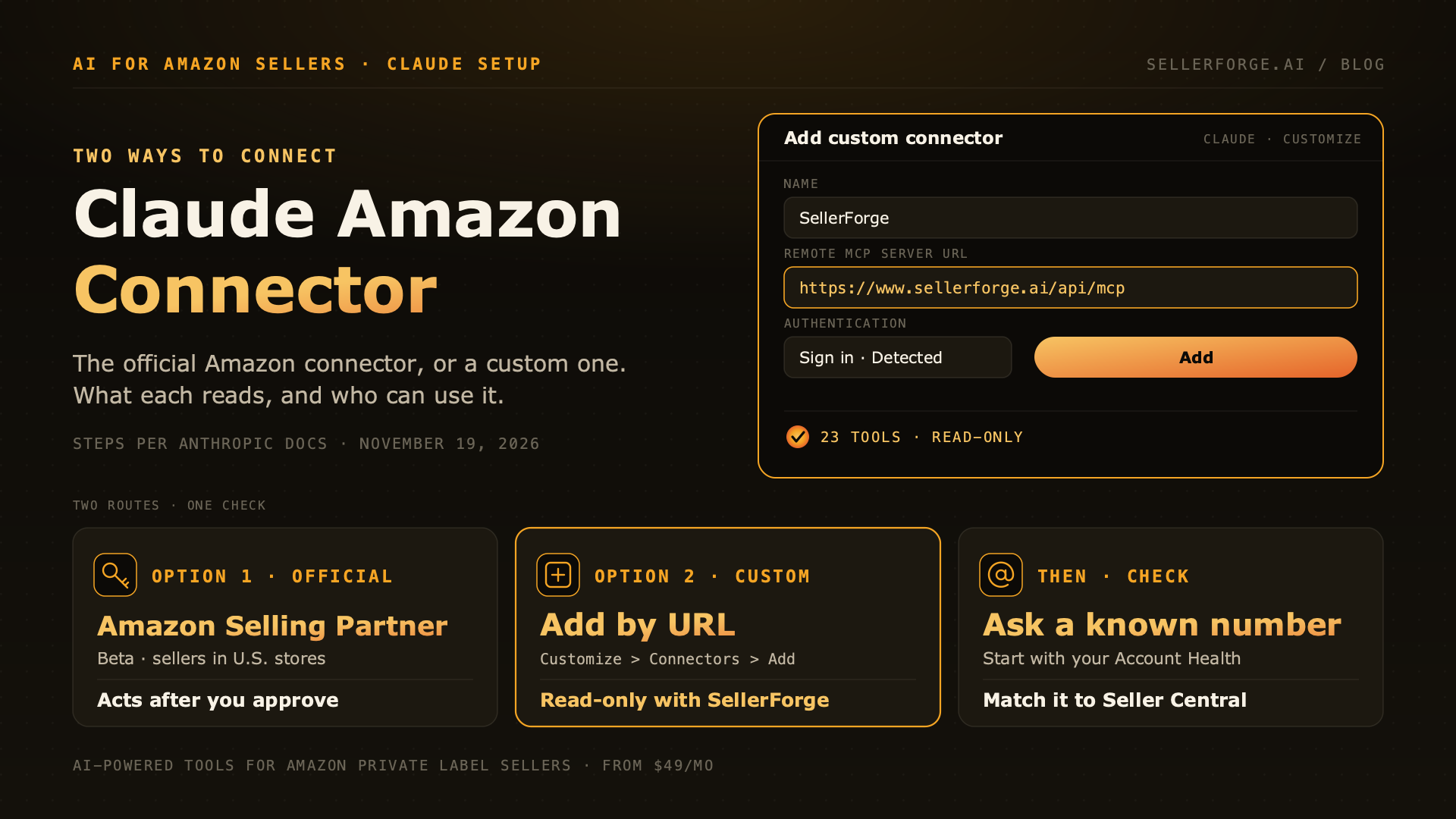
There are two Claude Amazon connectors. Amazon's own, listed as Amazon Selling Partner in Claude's directory, is in beta for sellers in Amazon's U.S. stores and can act on your account after you approve each action. A custom connector is added by URL: in Claude open Customize > Connectors, select Add, then Add custom connector, and paste a server URL such as https://www.sellerforge.ai/api/mcp. SellerForge's connector is read-only. It needs a SellerForge account with Seller Central connected: the 7-day trial needs no credit card, and read access stays free afterwards while your Amazon account stays connected.
Claude cannot log in to Seller Central, and you should not paste a password into a chat to try. It reaches your account through a connector: a service that holds an approved Amazon connection and offers it to Claude as a set of tools. Since September 2026 there are two kinds for Amazon sellers, and they suit different people.
This guide covers both. First Amazon's own connector, which you add from Claude's directory. Then a custom connector, which you add with a server URL, using SellerForge's as the example. After that: permissions, limits and troubleshooting.
SellerForge is our product, so weigh the recommendation accordingly. We have not connected Amazon's Selling Partner connector ourselves; that section relies on Amazon's announcement and Claude's directory listing. The Claude steps follow Anthropic's documentation as it read on November 19, 2026. If a label differs on your screen, trust what you see and Anthropic's pages.
Sources: Anthropic's Get started with connectors and Add a connector that isn't in the directory, the Amazon Selling Partner listing in Claude's directory, and Amazon's announcement of September 23, 2026.
The Two Claude Amazon Connectors, Side by Side
| What to compare | Amazon Selling Partner (official) | Custom connector (SellerForge) |
|---|---|---|
| Made by | Amazon | SellerForge |
| Status on November 19, 2026 | "Currently in beta" in Claude's directory, added September 2026 | Available |
| Who can use it | Sellers in Amazon's U.S. stores, per Amazon's announcement | Anyone with a SellerForge account that has Seller Central connected |
| How you add it | From Claude's directory, under Discover | Add custom connector, with the server URL |
| Can it change things on Amazon? | Yes, with your approval on actions | No. Every tool reads |
| What it reads | Listings, performance metrics, inventory and sales, per Amazon | Account health, inventory, reimbursements, Plans of Action, keyword rank, listing audits, ads campaigns, sales and orders |
| Cost | No fee stated in Amazon's announcement | 7-day trial with no card. Read access stays free afterwards while your Amazon account stays connected. Paid plans from $49 a month |
The two do not conflict. You can add both and switch each one on or off in any conversation.
Which One Should You Use?
- Use Amazon's connector if you sell in Amazon's U.S. stores and want Seller Assistant's view of your account inside Claude, including actions you approve.
- Use a custom connector if you are outside the U.S. beta, or you want data Amazon's description does not mention, such as reimbursement history, Plan of Action cases, keyword rank and listing audit scores.
- Use both if you want Amazon's first-party view plus a read-only second source to check it against.
Option 1: Add Amazon's Selling Partner Connector
- 1In Claude, go to Customize > Connectors. In the desktop app, select Customize in the sidebar, then Connectors.
- 2Select Discover and enter Amazon Selling Partner in Search connectors.
- 3Open the listing and select Connect to Claude.
- 4Sign in on the page Claude opens, review the access it asks for and approve it.
- 5Back on the Connectors page, check that the connector is listed under Your connectors with the status Connected.
On a Team or Enterprise plan you may see Request, or a note to ask an Owner, instead of a connect button. An Owner has to add the connector for the organization first.
Amazon said in its announcement that connecting takes roughly 60 seconds with no coding. It also described the plugin as a beta for sellers in Amazon's U.S. stores, with international expansion to follow, and it has not published dates. If you sell elsewhere, Option 2 does not depend on that beta.
Option 2: Add a Custom Connector by URL
What you need
- A Claude account. Anthropic lists custom connectors on the Free, Pro, Max, Ultra, Team and Enterprise plans. The Free plan allows one.
- A SellerForge account with your Seller Central account connected. New accounts start with a 7-day free trial and no credit card. You connect Amazon through Amazon's own authorization screen, so you never hand over a Seller Central password.
- About two minutes. There is nothing to install or host: the server runs at https://www.sellerforge.ai/api/mcp.
On a Free, Pro, Max or Ultra plan
- 1Go to Customize > Connectors.
- 2Select Add, then Add custom connector.
- 3Enter a name, for example SellerForge, and the server URL: https://www.sellerforge.ai/api/mcp. Then select Continue.
- 4Check the authentication settings. Claude marks the ones it reads from the server as Detected. Keep them.
- 5Select Add.
- 6If the connector shows Connect, select it and sign in to SellerForge.
Anthropic notes that the layout of this dialog varies: some accounts see everything on one screen and others see two steps. Either way there is no API key to copy. The sign-in is OAuth, and Claude never sees your SellerForge password or anything from Seller Central's login.
On a Team or Enterprise plan
An Owner adds the connector once under Organization settings > Connectors: select Add, then Custom, choose Web if Claude asks for a type, enter the name and the server URL, keep the detected authentication settings and select Add. Each member then opens Customize > Connectors, finds the connector with the Custom label and selects Connect to sign in with their own SellerForge account.
Use It in a Chat and Check a Known Number
In a chat, select + in the message box, then Connectors, and make sure the connector's toggle is on. Then ask something you can verify in Seller Central: "What is my Account Health Rating, and what are my order defect and late shipment rates?" Compare the reply with your Account Health page. If the figures match, the connection is reading the right account.
The first time Claude uses a tool it can ask for your approval. Allow once continues. Always allow skips the prompt for that tool from then on.
Expect a short lag on the newest day. SellerForge answers from synced data, not a real-time feed. Paid plans sync daily. On the Free plan, SellerForge keeps the data it already synced while your account stays active.
What Claude Can Read Through the SellerForge Connector
On November 19, 2026 the connector listed 23 tools, and every one of them reads. The areas they cover:
| Area | What comes back | A question to try |
|---|---|---|
| Account health | Account Health Rating, order defect, late shipment and on-time delivery rates, policy violations | Is my account at risk, and which metric is closest to its limit? |
| Inventory | Current FBA and AWD quantities | How many units do I have in FBA and AWD right now? |
| Reimbursements | What Amazon already reimbursed, by category, plus possible discrepancies not yet verified | What has Amazon reimbursed me in the last 90 days, by reason? |
| Plans of Action | Your Plan of Action cases and escalation plans, with their statuses | Summarize my open Plan of Action cases and what is still pending. |
| Keywords | Tracked keywords with organic and sponsored rank, rank history and Search Query Performance | Which tracked keywords dropped in rank this month? |
| Listings | Listing audit scores and the lowest-scoring listings, with fixes | Which listings scored lowest in the latest audit, and why? |
| Ads campaigns | Amazon Ads campaigns and their settings, with recent spend where available | List my campaigns by recent spend and show each one's settings. |
| Sales and orders | Revenue, orders and units for recent completed days, up to 30 | How did units sold last week compare with the week before? |
The possible reimbursement discrepancies are counts and raw estimates, not confirmed money owed. Three reports need the Growth plan or above: Voice of Customer, AI visibility and the decision log.
The full tool list is in the public sellerforge-mcp repository.
Permissions: Deciding What Claude May Do
Each connector has its own page under Customize > Connectors. Under Tool permissions you can set a single tool, or a group of tools, to Always allow, Needs approval or Blocked. Anthropic's advice is to choose Always allow only for servers you trust.
This matters most for a connector that can write. Amazon's can act on your account, so keeping its write tools on Needs approval means nothing happens without you seeing it first. SellerForge's connector has no write tools, so every call it makes is a read.
What the SellerForge Connector Cannot Do
- It cannot change anything on Amazon. Every tool reads; none edits listings, prices, bids or budgets in Seller Central or Amazon Ads.
- It does not return profit or margin figures. No tool computes them.
- It does not cover Vendor Central or Amazon DSP. The connector is built around Seller Central and Sponsored Ads campaign data.
- It is not a real-time feed. Answers come from synced data, as described above.
Where the Connector Works
Anthropic's documentation says remote connectors work in claude.ai on the web, the Claude desktop app, the Claude mobile app and Cowork. It also says the connectors you add in claude.ai are available in Claude Code when you sign in with your Claude account.
If you would rather add the server from the terminal, see how to connect Amazon Seller Central to Claude Code. For what to build once Claude is connected, see Claude for Amazon sellers: connectors, skills and Cowork workflows. The same server also works in ChatGPT: how to connect Amazon Seller Central to ChatGPT.
Vendor Central and Amazon DSP
Neither is a switch on a seller connector. Amazon's vendor APIs use their own roles and approvals, and Amazon DSP runs through the Amazon Ads API with its own application process. The options are laid out in connecting Amazon Vendor Central to Claude and connecting Amazon DSP to Claude.
Troubleshooting
| What you see | What to do |
|---|---|
| Amazon Selling Partner shows Request instead of a connect button | You are on a Team or Enterprise plan and an Owner has not added the connector yet. Ask an Owner. |
| There is no way to add a custom connector | On Team and Enterprise plans only an Owner can add one, under Organization settings > Connectors. On the Free plan, check whether you already used your one custom connector. |
| Claude cannot reach the server | Check the server URL character by character, including the /api/mcp ending: https://www.sellerforge.ai/api/mcp |
| The connector is connected but Claude does not use it | Select + in the message box, then Connectors, and turn its toggle on for that conversation. |
| The connector's row shows Reconnect | Claude lost access to the service. Select Reconnect and sign in again. |
| Tools answer with no data | Check in SellerForge that your Seller Central account is connected and has finished syncing. |
How to Disconnect
Revoke Claude from the SellerForge side in Settings → Connections. That ends its access at once. In Claude, open the connector's page under Customize > Connectors and select Disconnect to sign Claude out, or open the three-dot menu and select Remove to take the connector off your account.